SB updates
How to Refund a transaction on the Startbutton dashboard
Damilola Oyelere
Apr 3, 2026
3 minutes
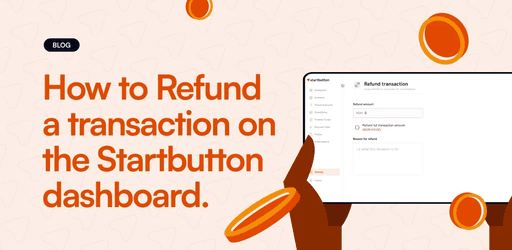
Refunds are part of scaling. Customers change their minds, duplicate payments happen, and sometimes you need to correct an under/overpayment.
Startbutton makes this easy by letting you initiate full or partial refunds for collections done via Virtual Accounts (VA), Card, and Mobile Money (MoMo) right from your dashboard or via API.
This guide shows you where to find the transaction, how to initiate the refund, and what the confirmation looks like afterward.
To issue a refund smoothly, confirm these first:
You’re in the correct currency/account on your merchant dashboard (refunds are initiated from the account where the collection was made).
Your available balance is sufficient to cover the refund amount (for the amount you’re trying to refund).
You know whether you’re doing a full refund or a partial refund.
Step 1: Find the transaction you want to refund
Option A: Find it from your Transactions table
Log in to your Startbutton Dashboard.
Select the currency/account the payment was received in.
Go to Transactions.
Search or filter until you find the transaction you're looking for.
Option B: Use the transaction details view to confirm you’ve got the right one
Open the transaction and use View detail to confirm the amount collected, payment channel (VA/Card/ MoMo), and the reference number that helps you reconcile
Step 2: Initiate a refund (Dashboard)
Refunds can be initiated from your dashboard in a few clicks:
In your Transactions table, locate the transaction.
Click the Action (… ) button.
Select Refund.
In the refund dialog:
Enter the amount (full or partial)
Add a reason
Click Submit to initiate the refund.
You can’t enter an amount higher than the original transaction amount.
Refunds can be partial or full.
Step 3: What confirmations look like (after you submit)
Once a refund is initiated, Startbutton gives you two main forms of confirmation:
1) Email confirmation
When a refund is processed, you receive an email indicating whether the refund was successful or failed.
2) Refunds tab + receipt view
To track refunds on your dashboard:
Navigate to the account/currency where you initiated the refund.
Open the Refunds tab.
In the Refunds table, you’ll see fields such as:
Refund reference
Collection reference
Collection amount
Refunded amount
Date
Origin (Dashboard)
Status (success / failed / pending)
To see the full confirmation details, click View receipt to view:
the original transaction details
the refund transaction details + status
From a workflow standpoint, the refund experience is the same:
The key difference is simply the payment channel the original collection used (VA, Card, or MoMo). The dashboard flow stays consistent.
Common scenarios (and how to handle them)
Scenario 1: Customer requests a full refund
Refund the full amount.
Track status in the Refunds tab.
Scenario 2: Customer needs a partial refund
Example: customer paid 50,000, but you need to return 10,000.
Initiate a refund for 10,000.
Your Refunds table will show the refunded amount and status.
Scenario 3: Underpayment/overpayment cleanup
If a transaction is tagged as an underpayment or excess payment, you can still refund it as part of correcting the discrepancy.
API option (for teams that want to automate refunds)
Refunds can also be initiated via API.
At a high level:
You provide the original transaction reference (to identify what’s being refunded).
You provide the amount (full or partial).
You can query refund status with the Refund TSQ endpoint.
FAQs
Can I refund partially?
Yes. Refunds can be partially or fully initiated.
Where do I see the refund status?
On the dashboard, go to the Refunds tab for the relevant currency/account. You’ll see statuses like success/ failed/pending, and you can open the receipt for details.
Will I get notified after I initiate a refund?
Yes. You’ll receive an email telling you if the refund was successful or failed.
Can I refund an underpayment or excess payment?
Yes, refunds also work for transactions tagged as underpayment or excess payment.