SB updates
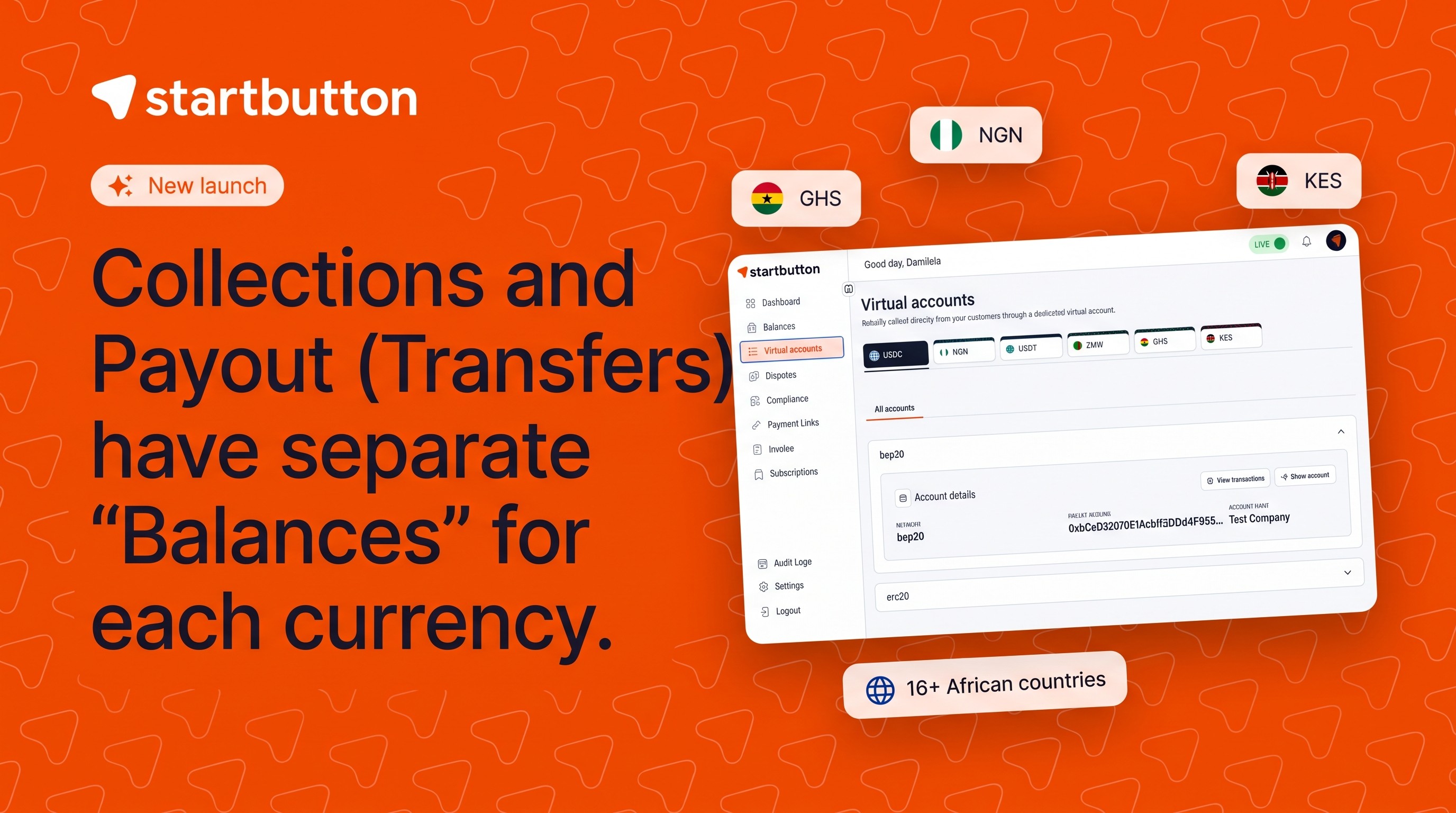
Collections and Payout (Transfers) now have separate “Balances” for each currency.
Damilola Oyelere
Oct 13, 2026
4 minutes
Before now, you have been carrying out all your transactions from one balance, unable to manage funds separately, reconcile transactions efficiently, and track your cash flow without sifting through your transaction records
We have made it easier for you by building a unified wallet structure that gives you control and visibility over how your funds are collected, managed, and paid out.
What Problem is this solving?
The separate Collection and Transfer Balances feature solves the lack of clarity and control merchants previously had when collections and payout funds were managed together.
It helps merchants:
Separate incoming payments from payout funds: Collections are credited to the Collection Balance, while transfers are funded from the Transfer Balance.
Improve reconciliation: Finance teams can clearly identify funds received from customers, funds reserved for payouts, and movements between balances.
Control liquidity: Merchants decide when and how much money to move from collections into the Transfer Balance.
Reduce payout failures: Teams can verify that sufficient funds are available in the Transfer Balance before initiating payouts.
Track activity across currencies: Each currency has separate Collection and Transfer Balances, with a centralized transaction view.
Manage deductions correctly: Refunds, disputes, and chargebacks are deducted from the Collection Balance.
Automate fund movement: Merchants can move funds between balances through the dashboard or API.
Provide flexible settlements and conversions: Merchants can settle or convert funds from the appropriate balance based on their operational needs.
How does this work?
Every currency on the Balances page has its own tab.
Collections land in the COLLECTION BALANCE, while all transfers sent out of your account are made from the PAYOUT BALANCE, which means you need to fund the payout balance.
How to fund your Payout balance
There are four ways to do this, and they can all be done on the “Balance” page
Through DVA:
The updated DVA experience gives you a clearer view of your DVAs and how funds received through them are allocated.
You can easily view your DVA details, associated currency, and relevant transaction activity from the dashboard.
Your DVA account is the specific account number allocated to you by Startbutton. If you will like to make a transfer from your bank account to your DVA account, you can do this by following these steps
Steps to move funds from your account to your Payout balance through your DVA
Step 1: Log in to the dashboard
Step 2: Click on the Balance page on the menu bar

Step 3: In the far right corner, click on the “More actions” dropdown to access the “Top-up” pop-up. You will be able to copy your virtual account details Or
Click on the “Virtual account” page to copy your account details to make a transfer to

Move funds from your Collection Balance
If you receive funds through your collection channels, you can move them from your Collection Balance to your Transfer Balance directly from the dashboard. You can perform this action programmatically via our new endpoint or right from the dashboard.
Steps to Move Funds from Collection to Transfer
Navigate to Balances on your dashboard and select your preferred currency.
Click on More actions.

Select Top up.
Select Move from Collection balance.
Enter the amount you want to move.
Enter your password and confirm the transfer.

Convert currencies from either balance
You now have the option to either convert funds from your collection balance or payout balance
Note: You can also fund your “Payout wallet” using this flow
Steps to do conversion
Click on Balances on the menu bar
Click on More actions
Click on “Conversion”
Select “Collection Wallet Balance” or “Payout Wallet”

Enter the amount you want to convert along with the preferred currency
Click on “Continue”
Click on “Confirm”

Top up with USDT and Convert.
Fund your account with USDT and pay out in a local currency.
Steps
Select the USDT wallet in “Balances”
Top up your USDT balance by clicking More actions > Top-up
Convert USDT to your preferred local currency by clicking on More actions > Conversion (for example, USDT to NGN, GHS, or KES)
Choose “Collection Wallet” or “Payout Wallet” as the source.
Note: If you do not yet have a USDT wallet associated with your account, you can request one from Startbutton support or your account manager.
How to Initiate a Transfer/Payout
Transfers can now only be initiated using funds available in your “Payout wallet” on the Balance page.
To initiate a transfer:
Navigate to Transfers.
Select the currency you want to transfer.

Enter the recipient's bank details.
Enter the amount and required transfer details.
Review the transaction details.
Confirm and initiate the transfer.
If you need additional funds, move money from your “Collection wallet” to your "Payout wallet" before initiating the transfer.

Note:
For Payout/Transfer
Direct Top-ups: All funds sent to your Direct Virtual Account (DVA) and Manual Top-ups will now be classified as "Top-ups" and will be credited to your “Payout Wallet” directly.
Strict Usage: Your Payout Wallet is dedicated solely to transfers and settlement. Settlements from your payout wallet would be initiated via API only
Streamlined Transfer Workflow: To improve your experience, you can now fund your payout balance directly from the transfers interface on your dashboard.
For Collections
Collection Wallet Updates: Payments via all collection channels will be credited to your “Collection Wallet”.
Refunds & Disputes: All refunds, chargebacks, and disputed transactions will be deducted directly from this balance.
Settlements: When you initiate a settlement request, funds will be drawn from your Collection Wallet.
DVAs for payout balance only: Payments done via DVA will be regarded as top-ups to your payout wallet
For both Collections and Payouts
Funding Payouts: Because payouts can now only be made from the Payout (Transfer) Wallet, you will need to move funds from your Collection Wallet to your Payout Wallet via your dashboard or programmatically to continue your disbursement operations.
Automation: You can use our new endpoint to automate this movement (e.g., daily or weekly) based on your preferred frequency.
Dispute Protection: If a dispute occurs and your Collection Wallet is empty, the system will automatically pull funds from your Transfer Wallet to cover the balance.
Settlements: You now have the option to initiate a settlement request either from your collection or payout balance