SB updates
How to create an Invoice on your Startbutton dashboard
Damilola Oyelere
Jun 5, 2026
3 minutes
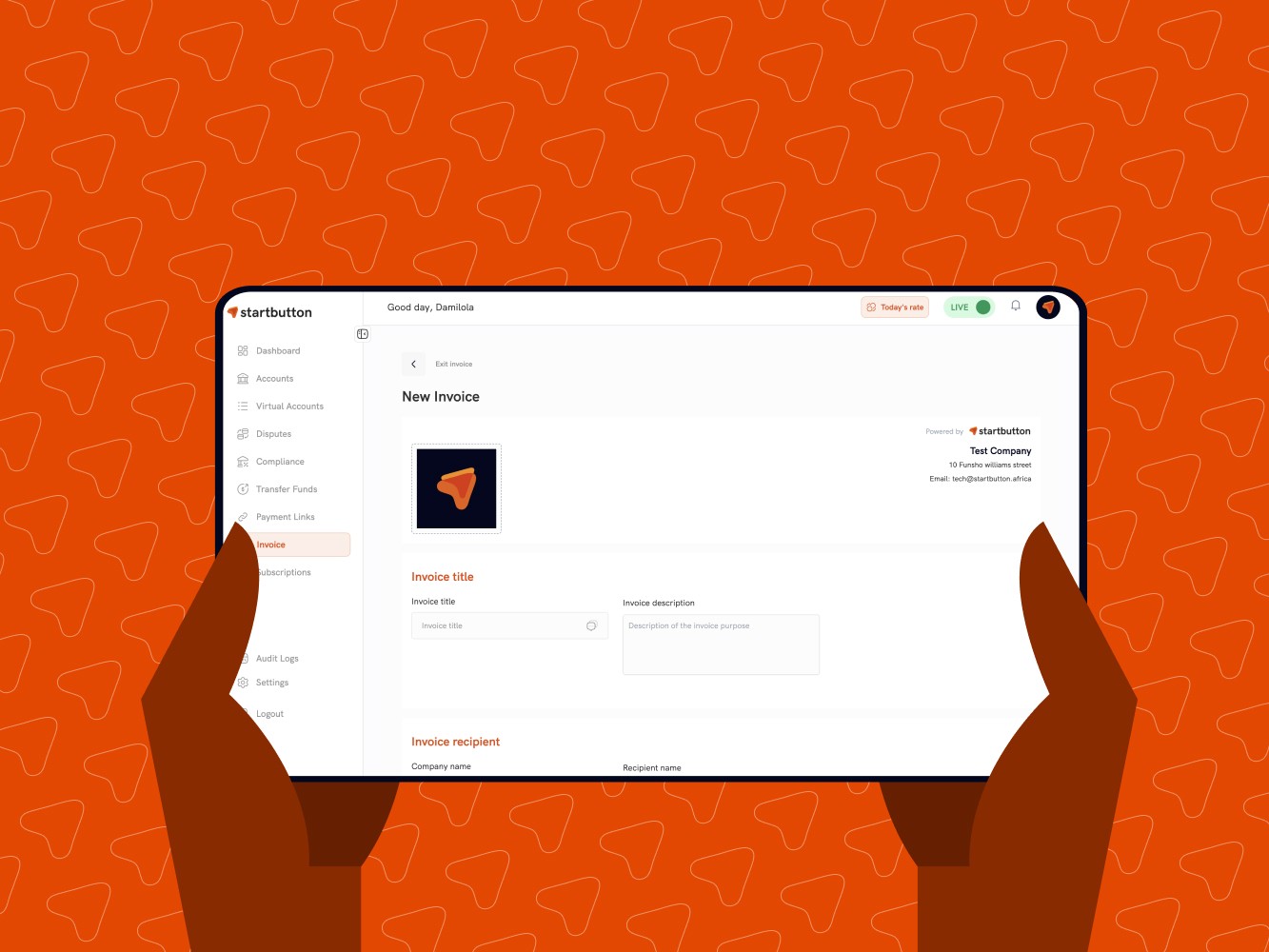
Startbutton’s Invoice feature lets you bill customers professionally and collect payments faster, without external invoicing tools. You can create an invoice right from your Startbutton dashboard, send it to a customer, track its status in real time, and get paid through an embedded payment link.
What you can do with Invoices
With Invoices on Startbutton, you can:
Create and send trackable invoices directly from your dashboard.
Add line items for products/services (with quantity and amount).
Apply optional add-ons like discounts (percentage or fixed amount) where applicable.
Share invoices via email or copy the payment link for WhatsApp/DMs.
Track invoice status (e.g., draft/created/sent/paid) from one place.
What you need to understand before you start
To create an invoice smoothly, it helps to have:
Customer name + email address (recipient)
What you’re billing for (items/services)
Currency you want to invoice in
Amounts + quantities
Any discount you want to apply (optional)
Step-by-step: How to create an invoice on your Startbutton dashboard
Log in to your Startbutton Merchant Dashboard.
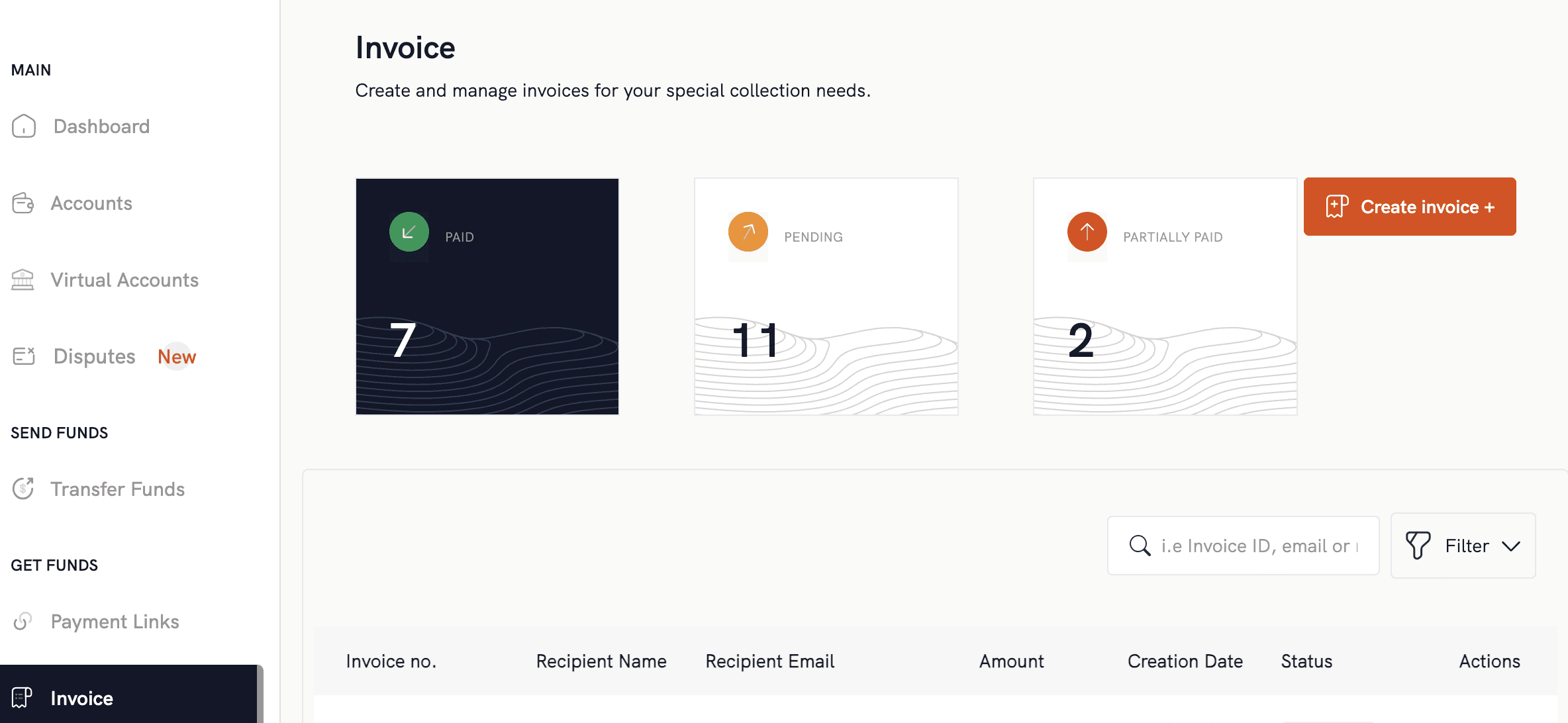
From the side navigation, go to Invoices.
Click Create Invoice.
Select or create a recipient (customer):
If the customer is new, create a new recipient by entering their details.
If you’ve invoiced them before, select them from your saved recipients.
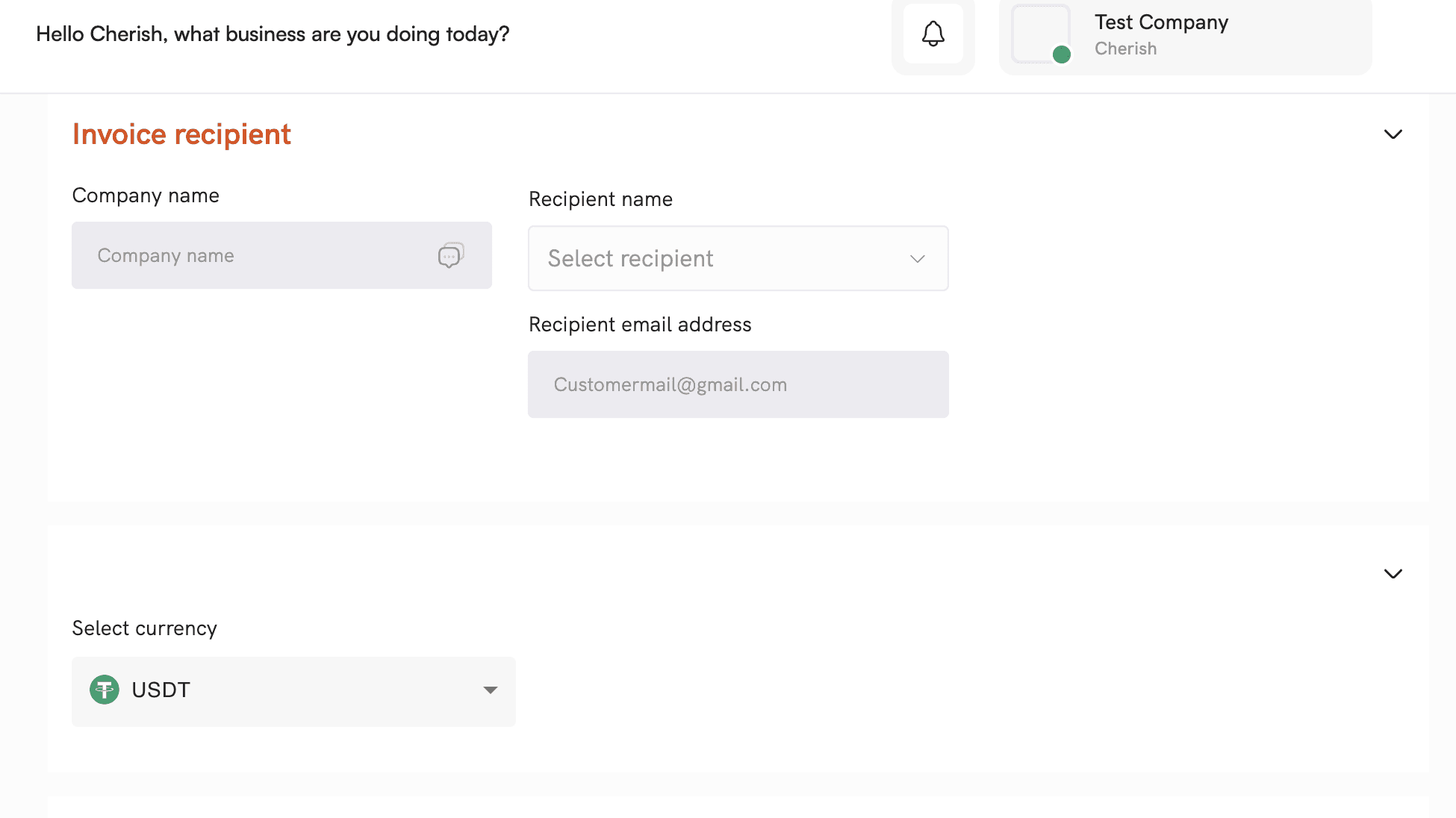
Fill in the invoice details:
Invoice title (for your reference)
Currency
Add line items (description, quantity, amount)
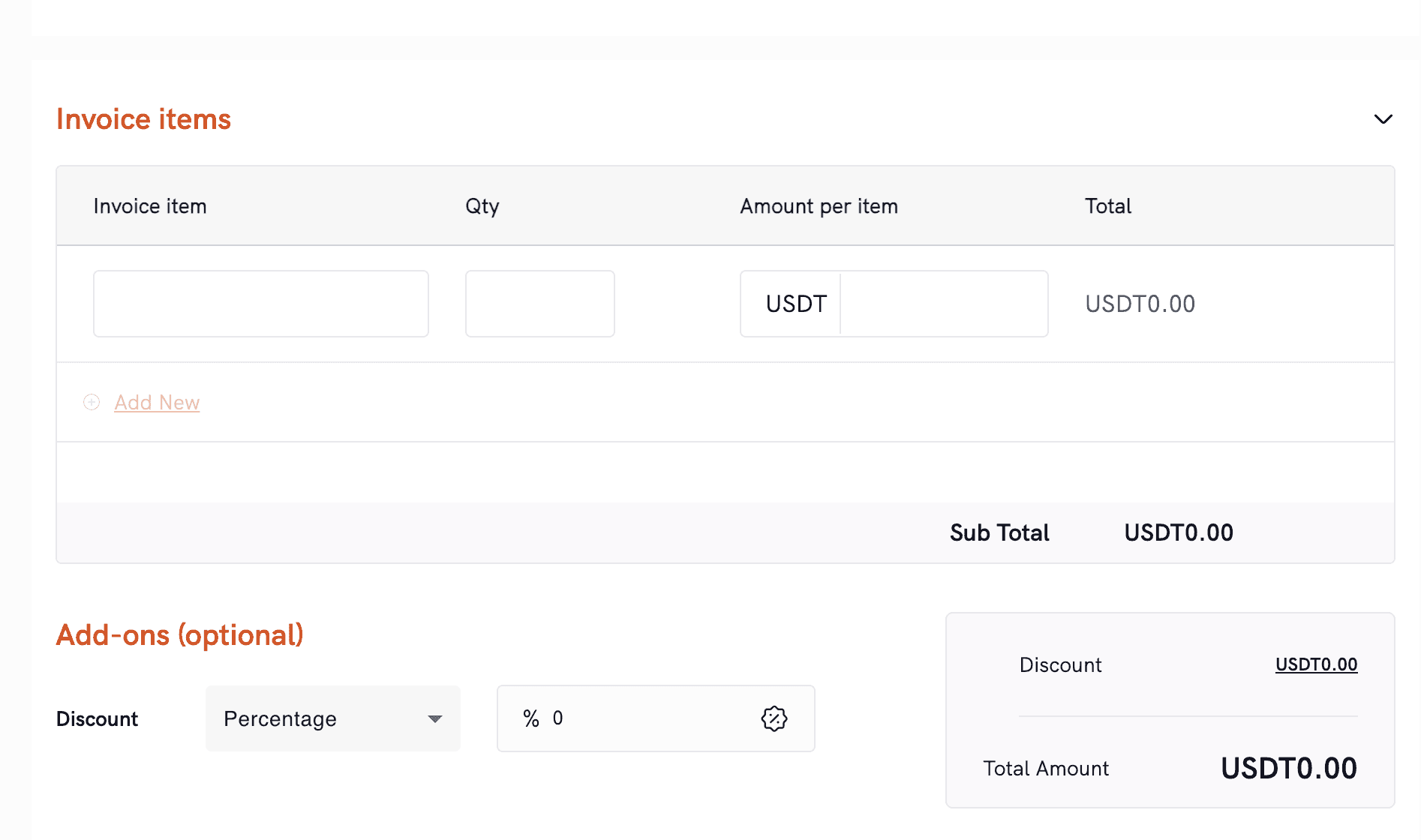
Add discount (optional):
Apply a discount as a percentage or fixed amount (if applicable).
Review totals and save:
Confirm the breakdown and total amount due.
Save the invoice. At this stage, it can remain as a draft/created invoice until you send it.
Send the invoice:
Send it to the recipient via email, or
Copy the invoice link and share via WhatsApp/DM/email—whatever works for your customer.
Track payment status:
Monitor the invoice status from your dashboard (created/sent/paid, etc.).
Once the customer pays via the embedded payment link, the invoice updates automatically, and the funds reflect in your balance.
When your customer receives the invoice:
They see the invoice details plus a payment link they can click to pay instantly.
After successful payment, the invoice status updates automatically on your end.
Pro tips (to get paid faster)
Keep item descriptions clear and specific (so customers don’t need to ask follow-up questions).
If you’re sending via WhatsApp/DM, add a short note like: “Here’s your invoice—please click the link to pay.”
Use discounts strategically (e.g., early payment incentive) to speed up collections.
FAQs
Can I create invoices without an API integration?
Yes, Invoices are created directly from the Startbutton dashboard (no integration required).
Can I share an invoice link instead of sending it by email?
Yes. You can copy the invoice link and share it directly.
Can I track whether an invoice has been paid?
Yes. You can track invoice status from the dashboard in real time.
Do invoices include a payment link?
Yes, each invoice includes an embedded payment link so customers can pay instantly.
Can I download the invoice as a PDF?
Yes. You can download invoices as PDFs from your dashboard.