SB updates
How to Enable Two-Factor Authentication (2FA) on the Startbutton Dashboard
Damilola Oyelere
Mar 2, 2026
3 minutes
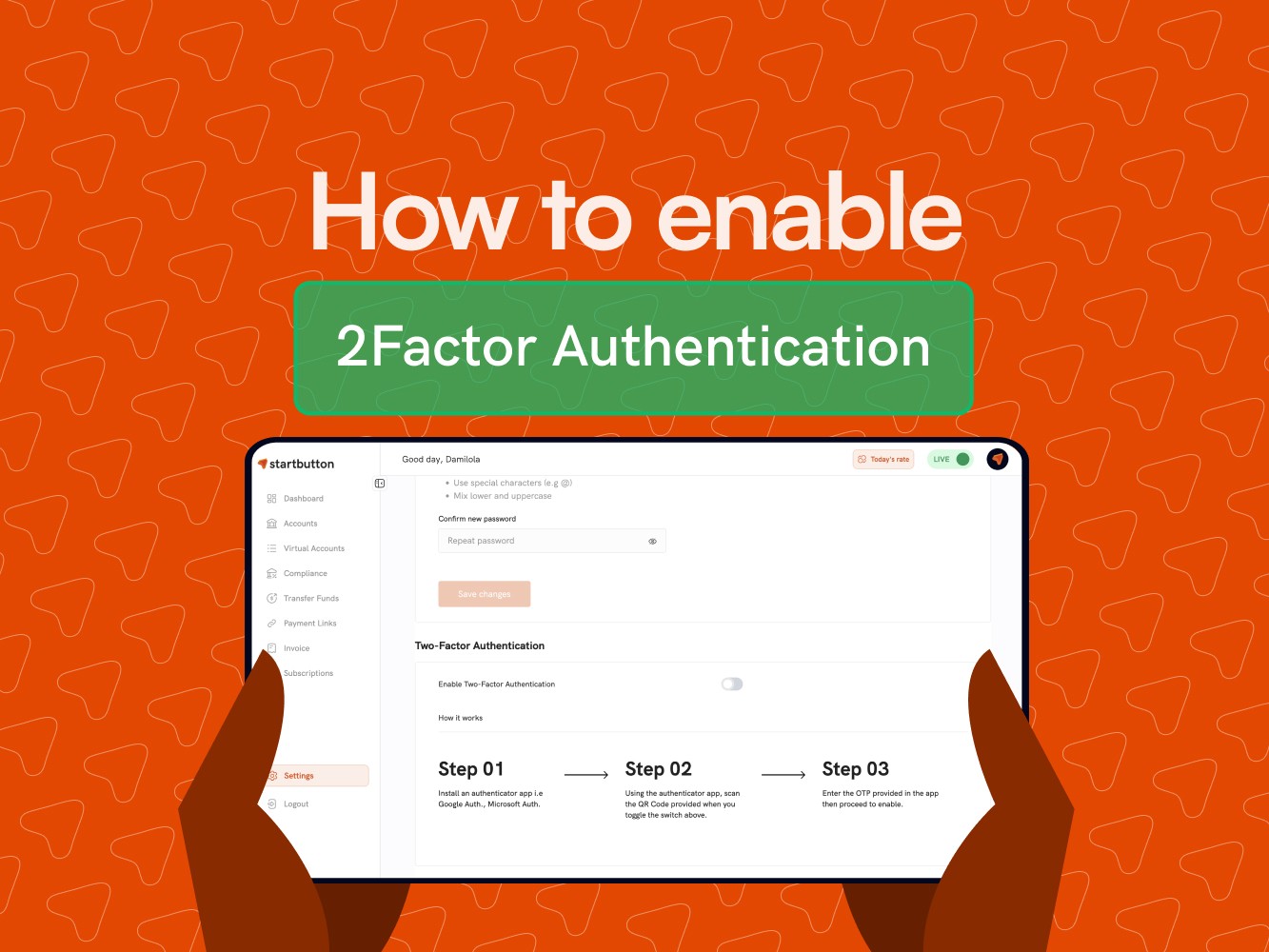
Passwords are table stakes, but they're also the weakest link in account security. A strong password can be phished; a careful team member can still fall for a well-crafted scam—and once someone has your login details, they can access your dashboard and everything in it.
That’s why we built Two-Factor Authentication (2FA) for Startbutton.
Two-Factor Authentication (2FA) adds an extra layer of protection by requiring a second verification step in addition to your password when accessing the Startbutton dashboard, helping protect your account from phishing, password breaches, and unauthorized access.
What 2FA is
Two-Factor Authentication (2FA) is a security feature that requires two forms of verification before granting access to your Startbutton dashboard:
Something you know: your password
Something you have: a unique one-time code (delivered via a secure method, such as a code sent to your phone or generated by an authentication app)
This means that even if someone steals or guesses your password, they still can’t access your dashboard without the additional verification step.
Who can enable 2FA?
Merchant Admins
As a merchant admin, you have control over 2FA for your account and your team:
Set up 2FA for yourself to secure your own dashboard access.
Enforce mandatory 2FA for your entire team using an “enforce 2FA” control in the admin dashboard (or via API/endpoint).
Once enforcement is enabled, every team member must complete 2FA setup before they can access the dashboard.
Startbutton Admins (Eagle)
Startbutton admins can also enforce 2FA on a per-merchant basis via Eagle (internal admin tooling), so high-priority accounts can be protected when needed.
How it works for your team
When you enforce 2FA, here’s what happens
Team members receive an email notification instructing them to set up 2FA.
They log in with their email and password, then they’re guided through the 2FA setup flow.
They complete the setup by following the step-by-step instructions in the flow.
From that point forward, logins require both their password and the additional 2FA verification step.
Important: Team members cannot access the dashboard until they complete 2FA setup.
2FA is designed to strengthen account security, and it may also apply to high-risk actions such as transfers, where users may be prompted to enable or complete authentication before proceeding.
How to get started
Enabling 2FA is simple:
Log in to your Startbutton Dashboard
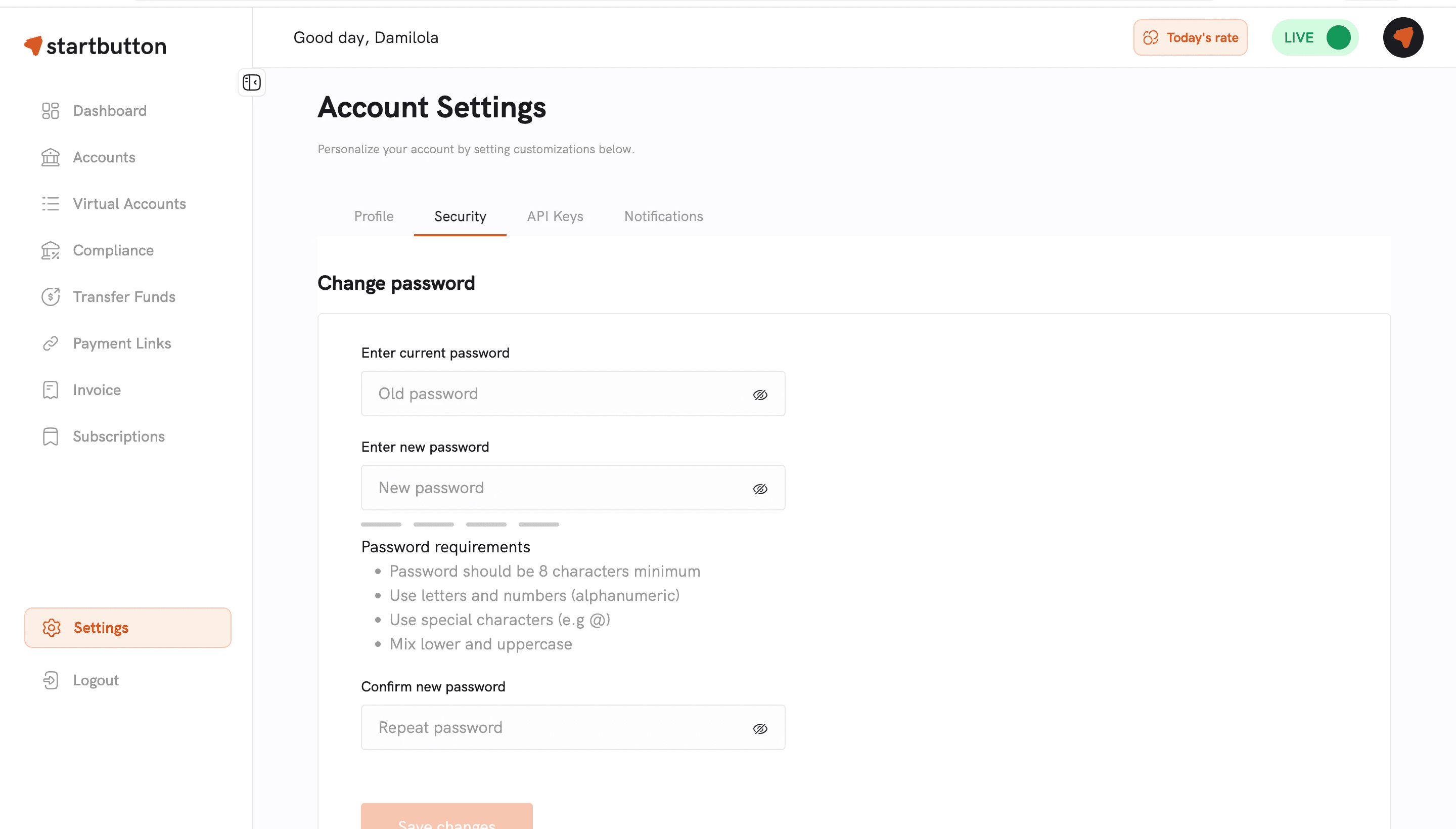
As an admin, locate the “Enforce 2FA” control in your admin dashboard settings (or enable it via API/endpoint).
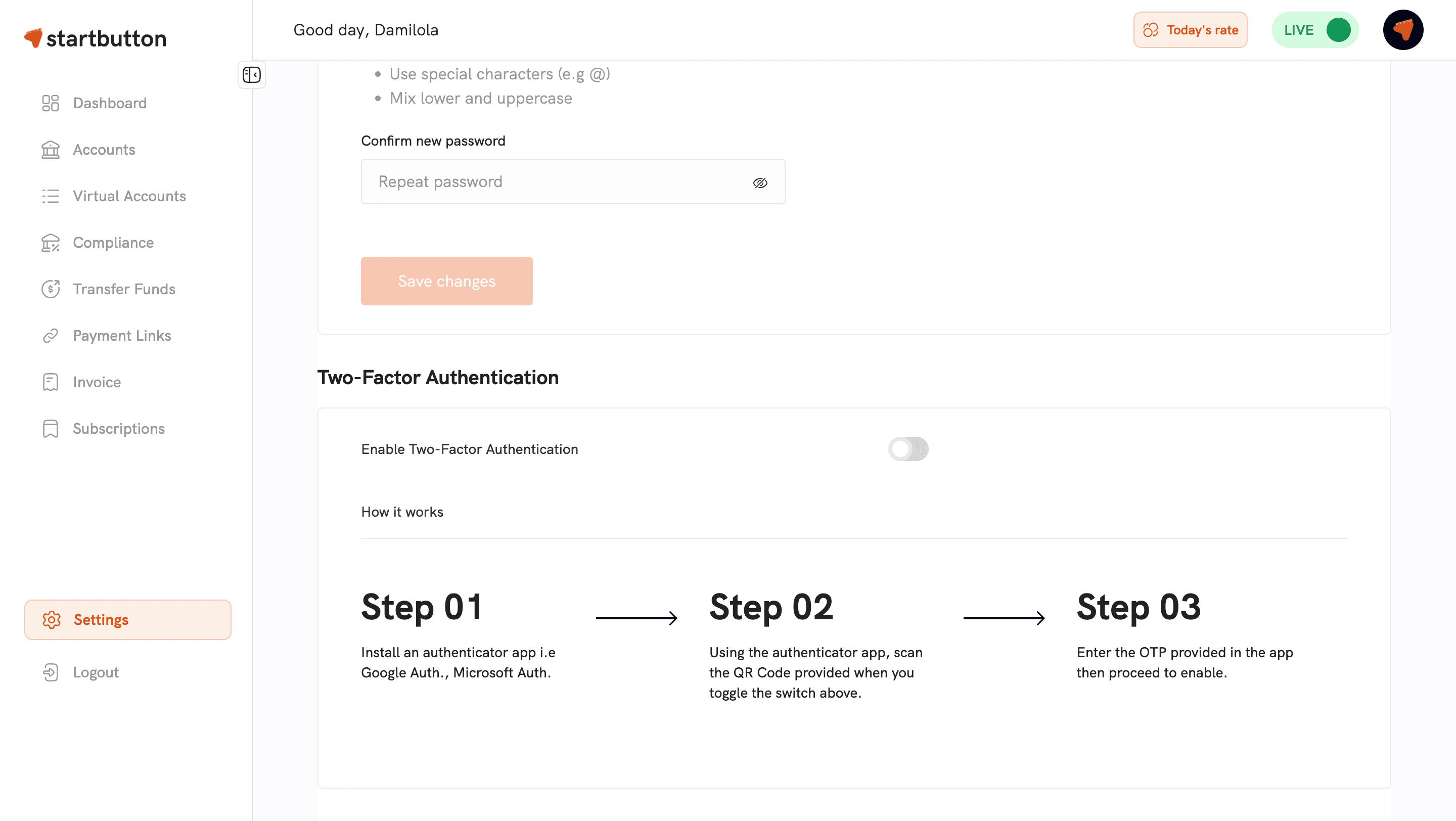
Save/confirm your change
Once enabled, your team will receive email instructions and be guided through the setup process when they sign in.
Frequently asked questions
What happens if a team member has trouble setting up 2FA?
They can reach out to you (the admin) or contact our support team at support@startbutton.africa.
Can I disable 2FA after enabling it?
Yes. Merchant admins can enable or disable 2FA enforcement at any time from the admin dashboard or via API/endpoint.
Is 2FA required for anything else besides login?
2FA is primarily for securing dashboard access. It may also be required for certain high-risk flows, such as transfers, depending on your account/security configuration.
Can I set up 2FA for myself without enforcing it for my team?
Yes—admins can set up 2FA for themselves, and separately decide whether to enforce it for the entire team.
What if I lose access to my 2FA method?
Contact support at support@startbutton.africa for assistance with safely restoring access.
Ready to enable 2FA?
Head to your dashboard admin settings and turn on Enforce 2FA to secure your account and your team.